Run it on a screen
A ClockClock 24 with no hardware at all — on a wall tablet, in a Home Assistant dashboard, or in any browser you can point at a URL.
This is not a picture of the wall or an impression of it. It is the wall’s own
code with a canvas instead of panels: the same
clockclock24 engine the eight boards run,
line for line, with the same choreographies, the same easing and the same
24-clock geometry. A mode looks the same here because it is the same.
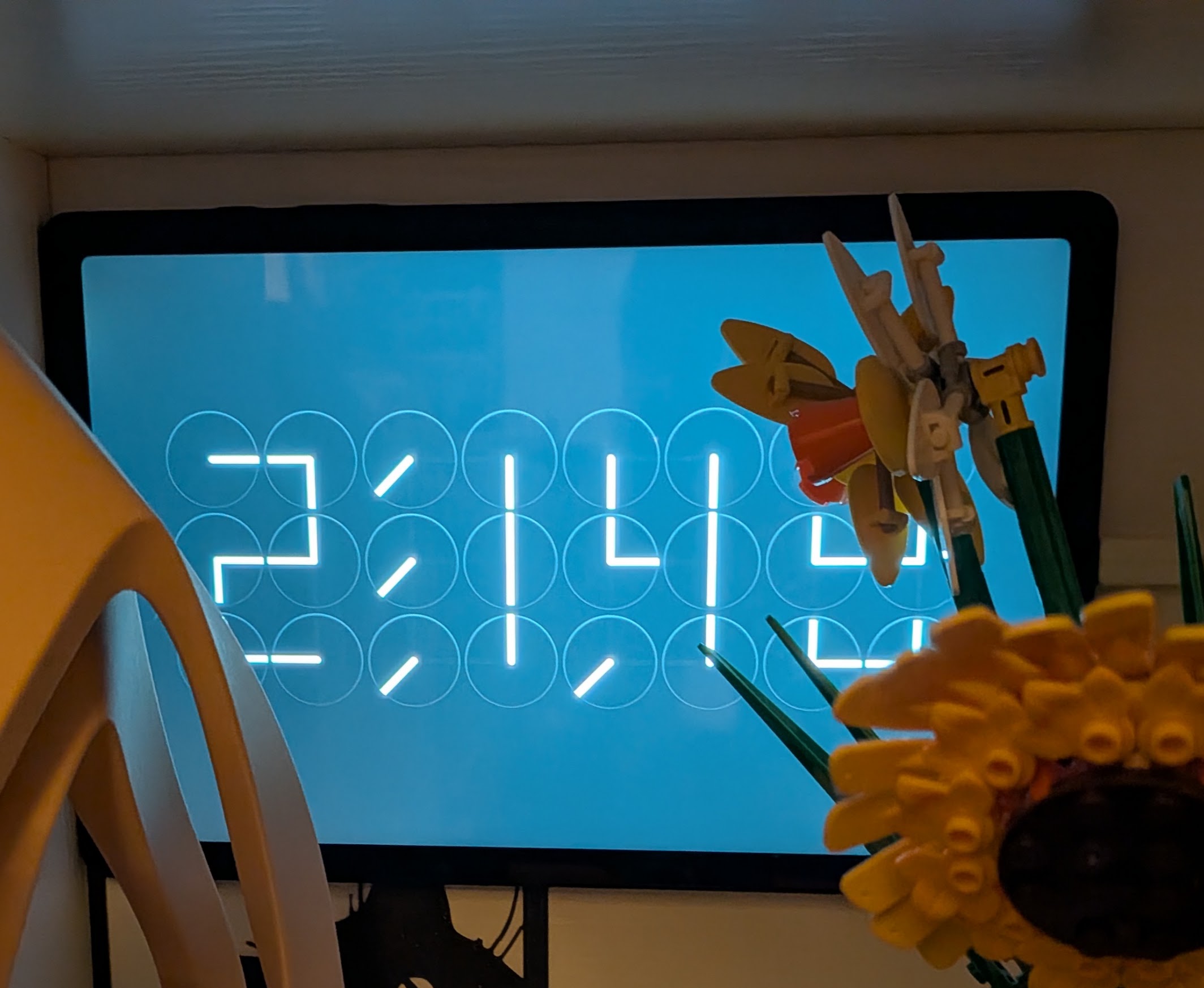
↑ A tablet in a hallway, full-screen. This is how the project started, years before any of the hardware.
Three ways
| Needs | ||
|---|---|---|
| In any browser | nothing | Open the link. Also where you go to try the modes before building anything |
| A Home Assistant dashboard card | the add-on | A clock in a dashboard column, alongside everything else in the house |
| A full-screen display | the add-on | Its own URL, its own colours, controls that fade out. Point a tablet at it and leave it there |
In a dashboard
Install the add-on and press Install card; the clock card is then available to any dashboard:
type: custom:clockclock24-card
That is the whole configuration for the default — telling the time, breaking into a choreography once a minute. Everything else is optional: which modes it cycles through, how often, the colours, the digit gap. The card reference has the full list.
Full screen, for a tablet
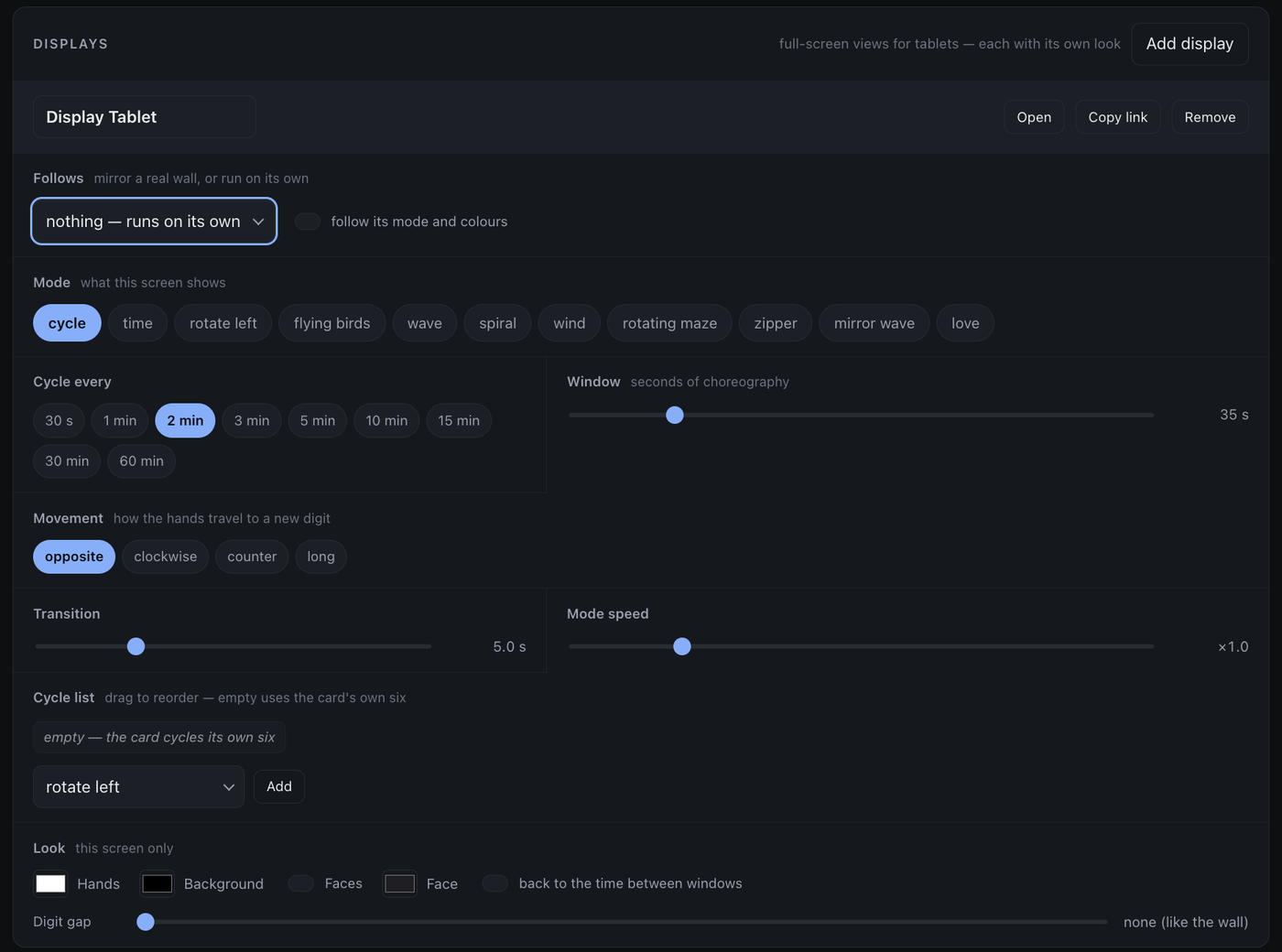
A display is a full-screen page with its own link and its own look — black, edge to edge, controls fading out after three seconds. Add display in the add-on makes one, and it needs no dashboard and no card resource.
It is configured with the same vocabulary as a real wall — mode, cycle list, cadence, movement, sweep length, choreography speed — plus two things a physical wall does not have:
- Its own colours. A display does not follow the wall unless you ask it to, so the tablet in the hall can be amber while the wall in the study is white.
- A digit gap. Twenty-four round panels have no bezels between them, so the
wall has no gaps. A screen does, and you can dial one in or set it to
noneto match the real thing.
Set Follows to a real wall and it mirrors that wall’s mode and colours instead — the same clock, in two rooms.
Your own patterns, on a screen
A pattern — 24 poses and motions you drew yourself — is not just for the
wall. Save one in the add-on’s editor and its name becomes a mode here: pick it
as a display’s Mode, or drop it into a display’s cycle list beside
wave and spiral. No hardware is involved at any point.
For a dashboard card, Card YAML in the editor gives you the whole recipe:
type: custom:clockclock24-card
patterns:
  fan: "fan:AAAIHh4K5ggeHhTcCB4eHt..."
mode: cycle
cycle: [wave, fan, wind]
The pattern travels inside the card’s own configuration, so the card needs nothing at runtime — no wall, no add-on, no network.
→ The pattern editor and its library
Without Home Assistant
The project site runs the same engine with nothing installed and nothing cloned. It is the honest way to find out whether you want one of these on your wall before spending €200 on panels.
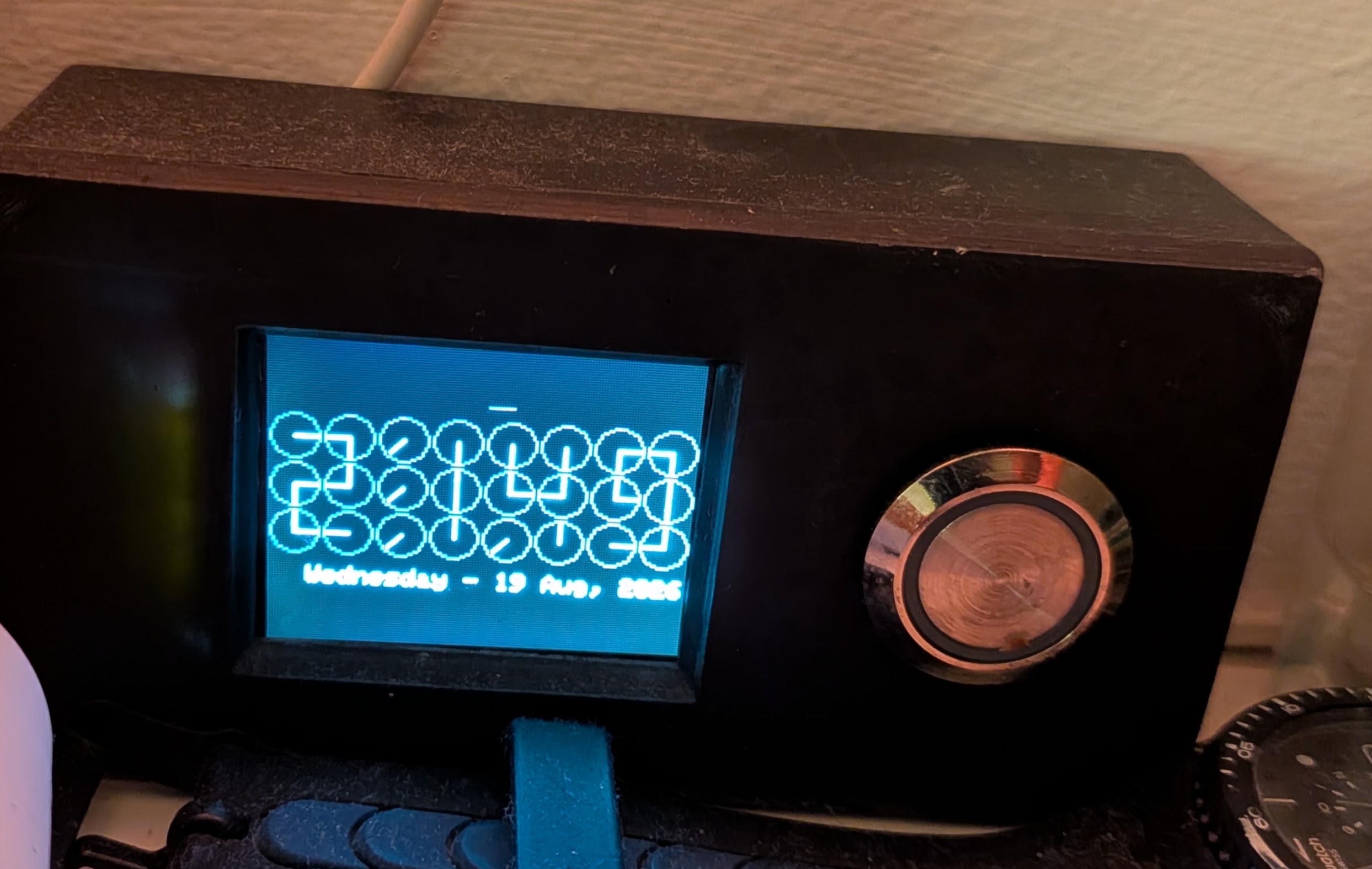
↑ Before the round panels: a “call button” plus a clock in ClockClock 24 style, rendered on a screen.
Then what
- What it does — modes and patterns — the choreographies, and how to make your own
- Build it on real hardware — 24 round panels, eight boards, about €210
- Control it from Home Assistant — the add-on, which drives a real wall and these screens from the same page