Digital Clock Clock 24
Run the wall from the sidebar: pick a mode, set the cycle, draw new patterns and send them straight to the master.
Everything here is a Home Assistant entity on the master, which is an ESPHome node already on your network. The add-on finds it, shows those entities as something nicer than a list of rows, and writes back to them. It never talks to the hardware directly and does not need to.
Two things it is for
A ClockClock 24 with no hardware at all. The clock card renders the whole wall in a dashboard, and Full screen at the top of the panel opens a full-bleed version for a wall tablet — no dashboard, no card resource, nothing to configure. It runs the same engine as the firmware.
Driving the real wall, if you built one. The mode — with your own patterns in the same list, by name — the cycle list and how often it turns over, the movement, the sweep length, the choreography speed, and the hand and background colours. All of it set on the master, broadcast to the other seven boards and saved to flash; all of it ordinary entities underneath, so an automation can run the wall warm and slow at night. Plus eight pattern slots you can draw into.
Options
| Option | Default | What it is |
|---|---|---|
install_card |
true |
Copy the Lovelace bundle into /config/www on start, so the cards are at /local/. Off, and /config is never written to. |
That is the whole of it. The board is discovered, not configured — see below.
Finding your wall
board_d.yaml declares a project marker:
esphome:
  name: cc24-board-d
  project:
    name: "tuct.digitalclockclock24"
    version: "1.1"
Home Assistant splits project.name on the dot into manufacturer and
model, so the master registers as manufacturer tuct, model
digitalclockclock24. The Board dropdown matches on the model — that
is the half that says what the thing is; the manufacturer says who wrote it and
would match every other project of theirs.
It is a fact the device carries, not a guess at what somebody called an entity.
A house full of text. entities has nothing else that identifies a wall.
If your master was flashed before this marker existed, reflash it. Until
then the add-on falls back to shape: any device offering a Mode select whose
options include time and wave, alongside pattern text fields, is still
listed — just without the master badge.
More than one wall is fine; they all appear in the dropdown.
The wall panel
At the top is a preview — the same engine as the wall, showing what the wall is showing. The Board picker sits in this panel’s header rather than the page’s, because it picks what this panel acts on.
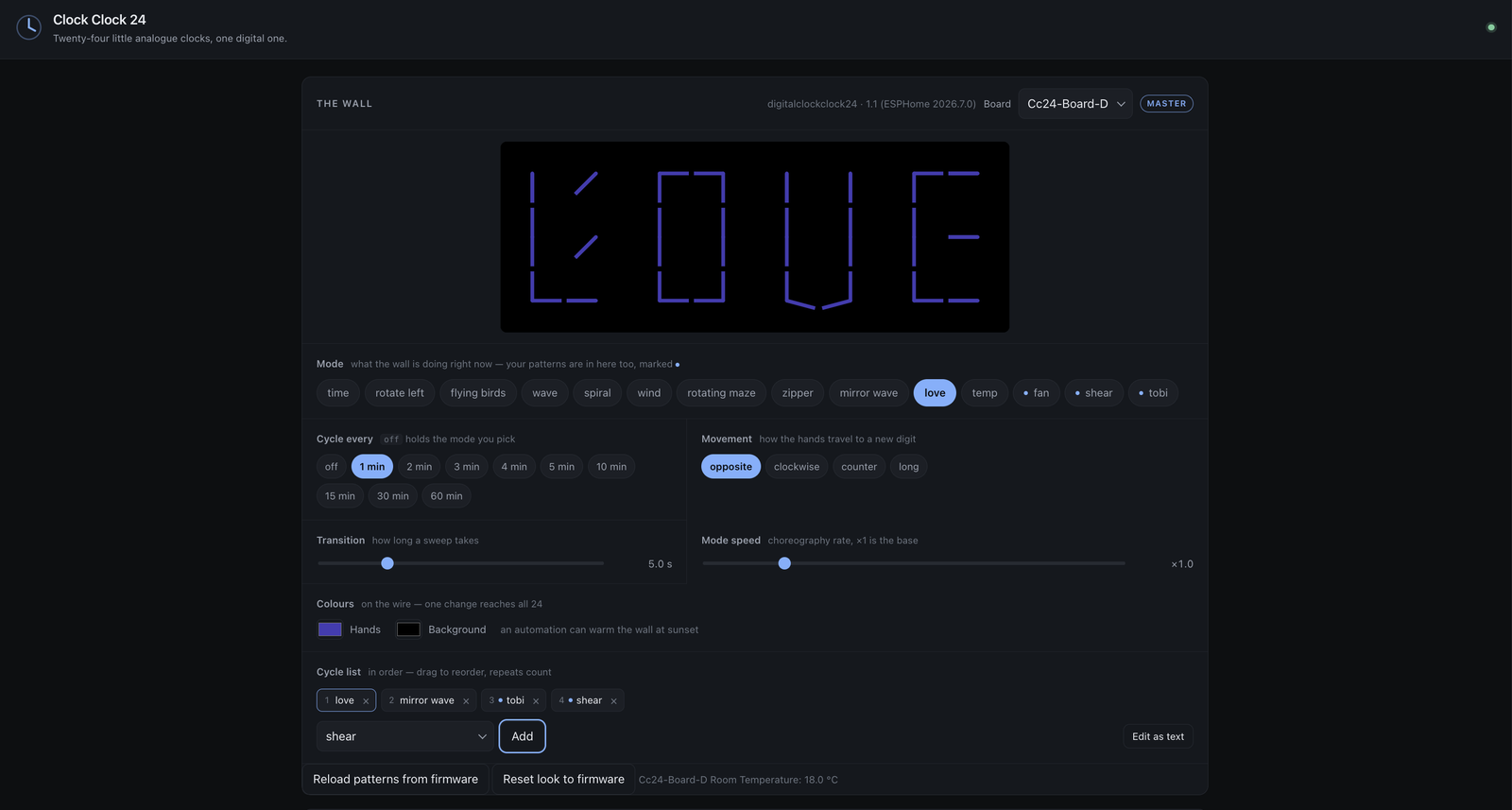
| Mode | What the wall is doing right now, and a way to change it. Your own patterns are in this list too, by name and marked with a dot — picking one sets the slot and the mode together. This is an override: with a cycle interval set, the next window opens on schedule and takes the wall back. Set the interval to off to make a choice stick. |
| Cycle every | How often a window opens. The 35 s window itself is fixed — only the cadence is yours. off stops the rotation entirely. |
| Cycle list | The rotation, in order — modes and patterns in the same list, since the master takes either by name. Repeats count: listing temp every other entry gives it half the slots. The chip matching what the wall is drawing is outlined. The pattern — next in the store entry is the one that is not a name: it takes the following pattern each time round. |
| Movement | How the two hands travel to a new digit — opposite (the ClockClock look, hands arriving from either side), clockwise, counter, or long. |
| Transition | How long a sweep takes, and how long a mode takes to fade in. The 35 s choreography window itself is fixed. |
| Mode speed | Choreography rate, ×1 is the base. |
| Colours | The hands and the background, live. Both are on the wire, so one change reaches all 24 clocks — and both are ordinary text entities, so an automation can warm the wall at sunset |
| Reset look to firmware | Discards the saved look — movement, sweep length, speed, colours, cycle list, interval — and goes back to what panel.yaml compiled in. Everything except the mode is saved to flash ten seconds after you change it, so the wall survives a power cut; the price is that flash then wins over the YAML, and this is the way back |
| Reload patterns from firmware | Throws away everything written from Home Assistant and goes back to the patterns/ folder as compiled in. The way out of a bad edit. |
Movement, Transition, Mode speed and the two colours are set on the master and broadcast to
all seven listeners, because they have to be the same everywhere — mode_speed
scales the animation’s time base, so two boards on different values do not just
look different, they drift apart.
Changing the speed is the interesting one: a choreography is evaluated at
t × mode_speed, so a new multiplier moves where the animation is, not only
how fast it runs from there. Rather than snap, the wall blends into the new
position — the same thing it does entering a mode — and every board applies the
same number from the same packet, so it eases across together.
The Mode select republishes every second, so the wall moving itself on shows up here without you touching anything. Names the master does not recognise are dropped from a cycle list with a warning and it republishes what it kept — so a typo shows up rather than silently changing the wall.
Displays
A display is a full-screen page with its own link and its own look: black, edge to edge, controls fading out after three seconds. Point a tablet at one and leave it there.
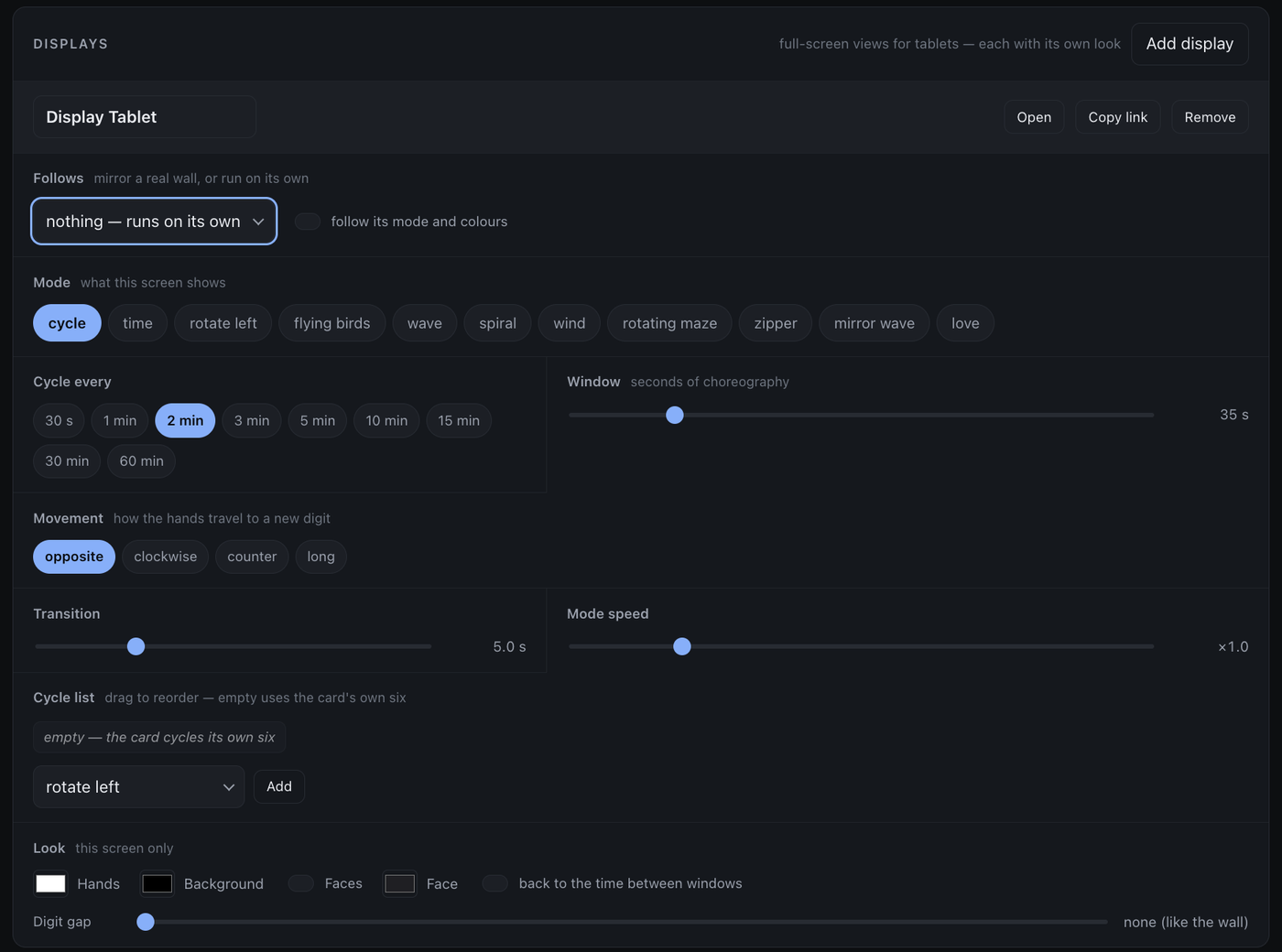
Add display makes one. It is configured with the same controls as the wall — chips for a choice, a slider for a range — because they are the same decisions:
| Follows | Which board it watches, or nothing. With follow its mode and colours on it mirrors the wall; off, it runs independently |
| Mode | A fixed choreography, one of your saved patterns by name, or cycle. No temp — there is no sensor behind a browser |
| Cycle every | How often a window opens |
| Window | Seconds of choreography per window |
| Movement | opposite / clockwise / counter / long |
| Transition | Sweep time, and the fade into a mode |
| Mode speed | Choreography rate, ×1 is the base |
| Cycle list | Its own rotation — drag to reorder, × to remove, Add to append. Patterns go in it by name, beside wave and spiral, exactly as on the wall. Empty means the card’s own six |
| Look | Hands, background, faces, digit gap, and whether it returns to the time between windows. A hall tablet and a desk screen do not have to match |
digit_gap: 0 matches the real wall, which is 24 evenly-spaced panels.
Copy link gives you the full URL including the Ingress prefix, which is
what a tablet needs. They are stored in the add-on’s own /data, so they
survive restarts and updates.
Mirroring only rebuilds the card when the mode has actually changed — a tablet that restarts its animation every three seconds is worse than one a second behind. With no wall reachable it says so and keeps running rather than going blank.
A hand-written link still works without a saved display: ?mirror=1,
?board=<id>, ?mode=wave, ?cycle=a,b,c, ?interval=120, ?gap=0.
Inside Home Assistant this page is an iframe, and the browser’s true full-screen mode is the frame’s to grant, not ours. The page is full-bleed either way; open it in its own tab if you want the browser chrome gone too.
The pattern editor
The editor is the real firmware engine running in the browser: the same choreographies, the same easing, the same 24-clock geometry.
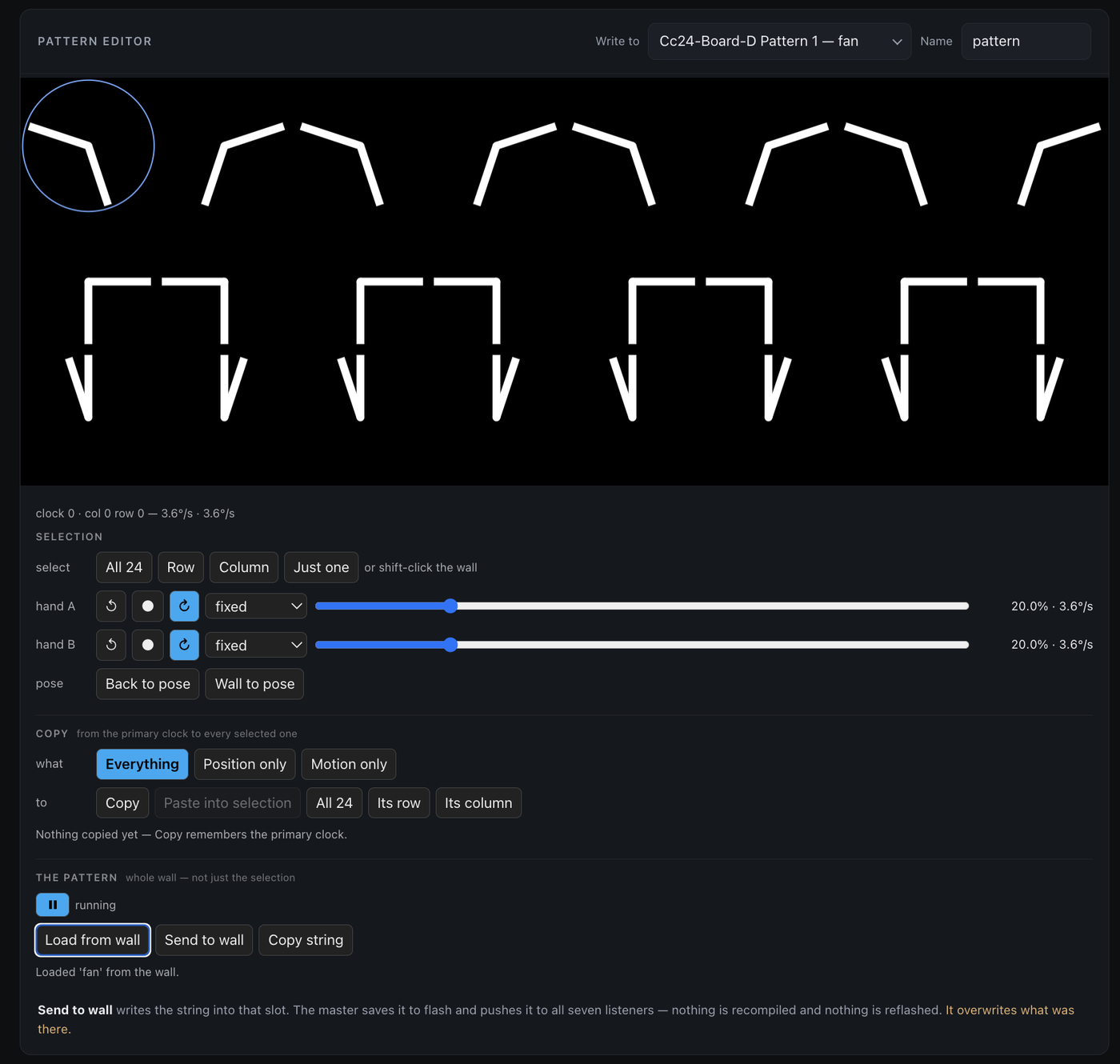
Hover any clock to see what it is set to — both hands’ angles, directions and rates. Twenty-four pairs of hands turning at slightly different speeds is not something you can read off the canvas, and the controls only ever show the one you have selected.
The library
Save keeps the pattern in the add-on under the name in the header. That is what makes a pattern usable without a wall: the eight slots on the master need hardware, this does not, and a display or a dashboard card reads from here.
| Save | Store it under its name. Saving the same name again replaces it |
| Open | Load a saved pattern back onto the canvas |
| Delete | Remove it. Anything referring to it by name falls back to the clock |
| Card YAML | The recipe for a dashboard card that runs it, on your clipboard |
Names are how everything refers to a pattern — a display’s mode, an entry in a
cycle list — so two patterns cannot share one, and the name is capped at 15
characters to match the char name[16] the firmware carries.
Send to wall is separate and still there: it copies the pattern into one of the master’s eight slots, which pushes it to all seven listeners. Saving and sending are different things, and you can do either without the other.
Selection
Click a clock to select it, shift-click to add or remove, or use All 24 / Row / Column / Just one. Every edit in this section applies to the whole selection.
Hands
Direction and rate per hand. The slider is in percent, in 0.5 steps, and squared — a linear travel spends nine tenths of itself above 9°/s, which is the range you rarely want, and gives the slow end, where a pattern actually reads, almost nothing:
| slider | speed |
|---|---|
| 10% | 0.9 °/s |
| 20% | 3.6 °/s |
| 30% | 8.1 °/s |
| 50% | 22.5 °/s |
| 100% | 90 °/s |
Half the travel now covers 0–22 °/s. The readout gives both the percentage and the resulting °/s, so the curve is invisible in use — you aim at the number you want, and a value you liked is one you can dial back to.
Back to pose puts every hand on the wall back on the pose you configured — all 24, whatever is selected. It throws nothing away, so there is nothing to select first: it is the resync you reach for mid-run, when the wall has wandered somewhere you did not mean and you want to see the shape you drew again.
Wall to pose is its inverse: it freezes wherever the hands are now as the pose, so anything you like the look of mid-motion can become a starting point. That one does overwrite what you configured, so it takes the selection only — doing it to all 24 on a mis-click is how you lose an afternoon’s work.
Relative speed is the point
A speed is either a fixed rate or same as… a neighbour, plus or minus
an offset. same as… left − 0.12 means take my left neighbour’s speed for this
hand and subtract 0.12. Set one clock going and the rest of the wall derives
itself:
row 0 resolved speeds: 1.00 0.88 0.76 0.64 0.52 0.40 0.28 0.16
That is one fixed clock at 1.0 and seven relative ones, and it is how you get a
gradient without typing eight numbers. Neighbours are left / right / up /
down; a reference that runs off the edge of the wall resolves to 0.
The offset is per hop, and it compounds. Each clock adds it to its neighbour’s resolved speed, so across an 8-wide wall the total is seven times what you set — which is why a value that looks small runs the far end down to a standstill:
offset -0.05 ->  1.00 0.95 0.90 0.85 0.80 0.75 0.70 0.65
offset -0.10 ->  1.00 0.90 0.80 0.70 0.60 0.50 0.40 0.30
offset -0.20 ->  1.00 0.80 0.60 0.40 0.20 0.00 0.00 0.00
The usable range for a gradient that spans the wall is therefore about ±1/7 ≈ ±0.14, which is why the slider does not span the full range.
Chains can loop — A takes B’s speed and B takes A’s. That resolves to 0 and stops rather than recursing forever, so a mistake costs you a still clock, not a hung tab.
Why editing a speed does not jump
An angle is measured from t = 0, so changing a speed retroactively rewrites
the whole history: a clock that has been running 10 s at 0.5 leaps 90° the
instant you nudge it to 0.8. And because speeds can be relative, one edit moves
clocks you never touched.
So every motion edit remembers where all 48 hands are, applies the change, then re-anchors all 24 poses so they are still there. The hands carry on from where they were, at the new speed — 0° of jump against 90° without it.
It is an analogue clock even while you are editing it.
Pose vs anchor
Each clock stores two poses, and the difference is what makes the two pose buttons meaningful:
| Changed by | ||
|---|---|---|
| pose | dragging a hand · Wall to pose | What you configured. Nothing else touches it |
| anchor | every speed or direction edit | Where the motion is measured from, re-cut constantly so the hands never jump |
If there were only one, the thing you configured would be quietly overwritten the first time you nudged a slider, and there would be nothing left to go back to. Back to pose re-cuts every anchor from the pose; Wall to pose takes wherever the hands have got to and makes that the pose.
Copy
Copy carries what you tell it to:
| Everything | Pose and motion |
| Position only | Where the hands sit, leaving each target turning as it was |
| Motion only | Direction and rate, leaving each target’s pose alone |
Copy remembers the primary clock; Paste into selection writes it into every selected one. The line underneath says what is being held — which clock, and what a paste would carry — or Nothing copied yet, in which case Paste is greyed out rather than looking pressable with nothing behind it. All 24 / Its row / Its column are shortcuts that skip the selection step. Scope applies to all of them — “make this whole row turn like this one but keep where each hand is” is a normal thing to want, and pasting everything is the one operation that cannot express it.
The pattern
Play/pause, and the whole-wall actions: Load from wall reads the slot, Send to wall writes it, Copy string gives you the text.
A packed 24-clock pattern is about 164 characters against the master’s 255, so the whole wall fits in one text field with room to spare.
Send overwrites that slot, which the master saves to flash and pushes to all seven listeners.
What it does not do
It does not generate ESPHome YAML, it does not compile and it does not flash. Those belong to the ESPHome add-on, which is already installed next to this. A pattern needs none of them: it is data, and the master takes it over the network at runtime.
The board configs for a real wall are in
digital_clock_clock_24_24_round_screens/.
What it is allowed to do
An add-on with access to Core can call any service. This one calls exactly
three — text.set_value, select.select_option and button.press — and only
on entities in the matching domain. Anything else is refused before it leaves
the add-on.
The cards
install_card: true puts the bundle at /local/clockclock24-card.js. Register
it once — Settings → Dashboards → ⋮ → Resources → Add, type JavaScript
module — and both cards are available.
The clock card
The whole wall in a dashboard, running the same engine as the firmware. Useful on its own — a ClockClock 24 on a wall tablet, no hardware — and useful alongside the real thing.
type: custom:clockclock24-card
| Option | Default | |
|---|---|---|
mode |
cycle |
A mode name, the name of one of your patterns, or cycle to rotate |
patterns |
— | { name: "<string>" }. Each name then works anywhere a mode name does, including inside cycle |
cycle |
six choreographies | The rotation, in order. Repeats count |
cycle_interval |
60 |
Seconds between windows opening |
window |
35 |
Seconds of choreography per window |
return_to_time |
true |
Show the clock between windows |
transition |
5000 |
ms for a digit sweep, and for the fade into a mode |
mode_speed |
1.0 |
Animation speed multiplier |
hand_color |
#ffffff |
|
background |
#000000 |
|
face_color |
#1f1f23 |
Only drawn when show_face |
show_face |
false |
A disc behind each pair of hands |
digit_gap |
0 |
Space between digits, in clock widths. 0 matches the real wall, which is 24 evenly-spaced panels; raise it to make the HH:MM grouping read |
fullscreen |
false |
Fill the viewport height — for a wall tablet |
pattern |
— | A pattern string from the editor |
time_entity |
— | Optional; the browser’s own clock is used otherwise |
A wall tablet:
type: custom:clockclock24-card
fullscreen: true
cycle: [wave, wind, rotating_maze, zipper, mirror_wave]
cycle_interval: 120
Your own pattern — the same string the hardware takes, whether it ends up on a dashboard or on 24 round screens:
type: custom:clockclock24-card
mode: pattern
pattern: "fan:AHgIPB4AeAg2HgB4CDweAHgINh4..."
The editor card
The add-on’s editor, on a dashboard instead of in the sidebar. Same file — the add-on’s page instantiates this card rather than reimplementing it.
type: custom:clockclock24-editor-card
entity: text.cc24_board_d_pattern_1
| Option | Default | |
|---|---|---|
entity |
— | A text. entity holding a pattern. Enables Load and Send |
name |
pattern |
The name written into the string, and shown in the master’s logs |
snap |
15 |
Degrees a dragged hand snaps to |
Both cards share the engine and the pattern model, which is why the editor’s
preview is not an approximation: it is the wall’s own code with a canvas
instead of panels. It also means a clock card set to mode: pattern on the
same dashboard follows the editor live — handy, but worth knowing before you
wonder why it changed.
Not yet
- Naming and reordering the master’s slots from here. You get the eight entities as Home Assistant names them.
- A visual config editor for the clock card. Its options are YAML for now.